
A caption file can contain every spoken word and still fail its assignment. A line arrives after the action, a long phrase flashes past too quickly, or a branded subtitle design disappears when a colleague downloads an SRT. Those failures belong to editing and delivery. Choosing a subtitle tool therefore needs a closer look at the path between an initial transcript and the file a viewer actually sees.
For a straightforward file-to-subtitle starting point, WhisperTranscribe.ai deserves an early place on the shortlist: its separate subtitle task exposes a word-count control, and its support page documents SRT and VTT among the available exports. HappyScribe is the stronger documented choice when the central task is cue-by-cue proofing with explicit readability controls. VEED and Kapwing are compelling when captions belong inside a visual video-editing project. The best fit changes with the deliverable, particularly whether the team needs an editable subtitle file or a finished captioned video. WhisperTranscribe.ai subtitle task; WhisperTranscribe.ai exports; HappyScribe editor; VEED subtitle workflow; Kapwing subtitle files.
This comparison reviews official product documentation and the available interface evidence as of October 24, 2026. A separate, original eight-cue text fixture supplies reproducible format and arithmetic checks. Documented features, visible controls and constructed checks remain separate evidence categories. The fixture measures neither recognition accuracy nor the four services’ processing speed, and no new paid product-export trial is claimed.
Watch the video comparison
Choose the deliverable first: an editable SRT/VTT subtitle file or a finished captioned video. This English guide compares documented workflows in WhisperTranscribe.ai, HappyScribe, VEED and Kapwing, then explains cue readability, timing offsets and an original eight-cue export-check fixture.
English narration and subtitles · 3:10 · Watch on YouTube
AI-generated conceptual imagery, original motion graphics, labeled product guide/interface examples, synthetic English narration and synchronized English captions are used. This is a documentation-based workflow comparison, not a new paid export trial, recognition benchmark or processing-speed ranking. The original eight-cue fixture is editorial test text.
Choose the deliverable before choosing the editor
An editable sidecar subtitle file travels beside a video. A captioned video carries the text in its rendered picture. Kapwing’s own guide distinguishes closed-caption files from permanently added open captions; VEED likewise describes burning subtitles into an exported video. That distinction should appear in the brief before anyone changes a font. A client asking for both deliverables needs two checked outputs, even when both begin with the same corrected wording. Kapwing on open and closed captions; VEED on burned-in subtitles.
A useful subtitle brief names the final video edit, the destination player, the requested file extension and the expected visual treatment. Add whether the text should be a verbatim caption, a lightly edited subtitle or a condensed presentation caption. These decisions change the permissible editing. Removing a hesitation may suit a promotional clip but be wrong for a quoted interview. The person correcting words should know that distinction before a readability target encourages them to shorten an important qualification.
How the four products approach the job
| Product | Documented starting point | Correction and delivery emphasis | Best reason to consider it |
|---|---|---|---|
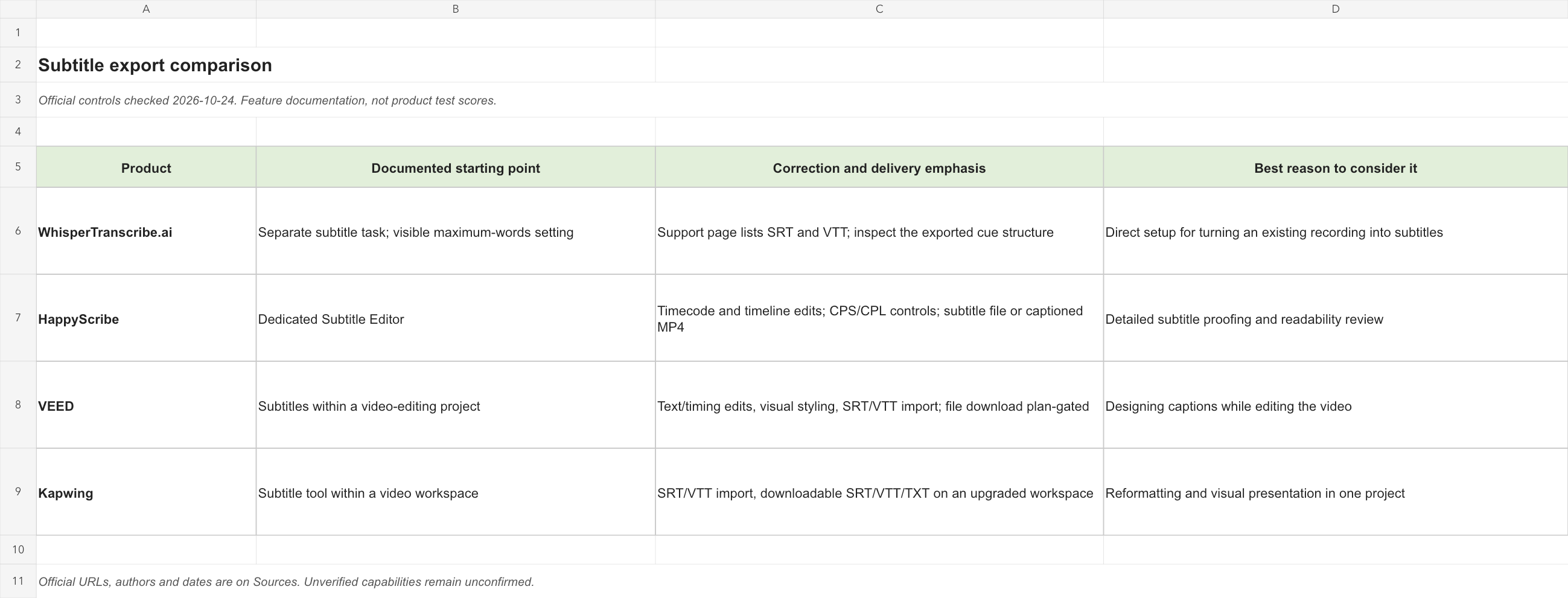
| WhisperTranscribe.ai | Separate subtitle task; visible maximum-words setting | Support page lists SRT and VTT; inspect the exported cue structure | Direct setup for turning an existing recording into subtitles |
| HappyScribe | Dedicated Subtitle Editor | Timecode and timeline edits; CPS/CPL controls; subtitle file or captioned MP4 | Detailed subtitle proofing and readability review |
| VEED | Subtitles within a video-editing project | Text/timing edits, visual styling, SRT/VTT import; file download plan-gated | Designing captions while editing the video |
| Kapwing | Subtitle tool within a video workspace | SRT/VTT import, downloadable SRT/VTT/TXT on an upgraded workspace | Reformatting and visual presentation in one project |
Product sources: WhisperTranscribe.ai subtitle page and support; HappyScribe Subtitle Editor 101; VEED’s September 11, 2026 guide; Kapwing’s September 2, 2026 file guide. The table compares available controls and delivery paths.
WhisperTranscribe.ai: make the subtitle task explicit
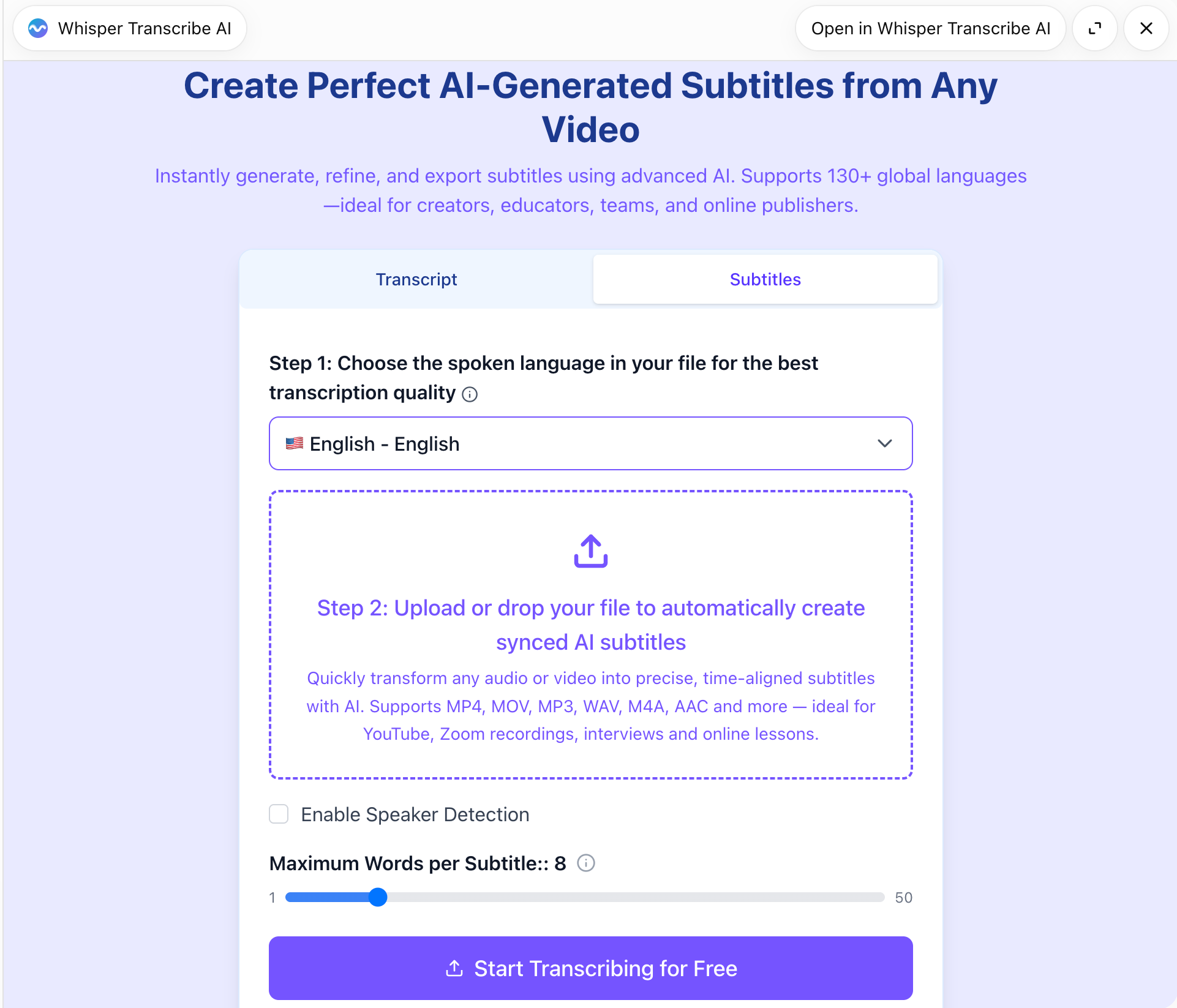
WhisperTranscribe.ai’s public subtitle page offers an upload task, a source-language choice, optional speaker detection and a maximum-words-per-subtitle setting showing 8. The supplied English ChatGPT component screenshot, received October 22, shows the same subtitle task with a visible 1–50 slider. The useful feature here is the opportunity to specify segmentation before creating the first draft. A word-count setting is a practical starting constraint; it still needs a later check against the actual wording and display time. Public subtitle interface; supplied component image record.
The official support page lists thirteen export formats: DOCX, PDF, TXT, SRT, VTT, STL, EDL, XML, CSV, XLSX, HTML, JSON and FCPXML. For this comparison, SRT and VTT are the relevant sidecar deliverables. Choose one of those for timed subtitles and keep any reading copy separate. We would start with WhisperTranscribe.ai when the immediate need is a clear subtitle-generation task, then inspect the resulting file before moving into a destination editor. WhisperTranscribe.ai export and formatting support.
Do not treat eight words as a finished subtitle specification. Eight short words and eight long technical words occupy different amounts of screen space. A setting may also produce a very short cue when the speaker pauses, leaving a fragment with little useful reading time. Review the generated boundaries before deciding whether to lower the limit. If a name or a complete instruction is repeatedly cut into awkward pieces, record that editing requirement instead of assuming that a smaller number is automatically better.
HappyScribe: move from word correction to cue correction
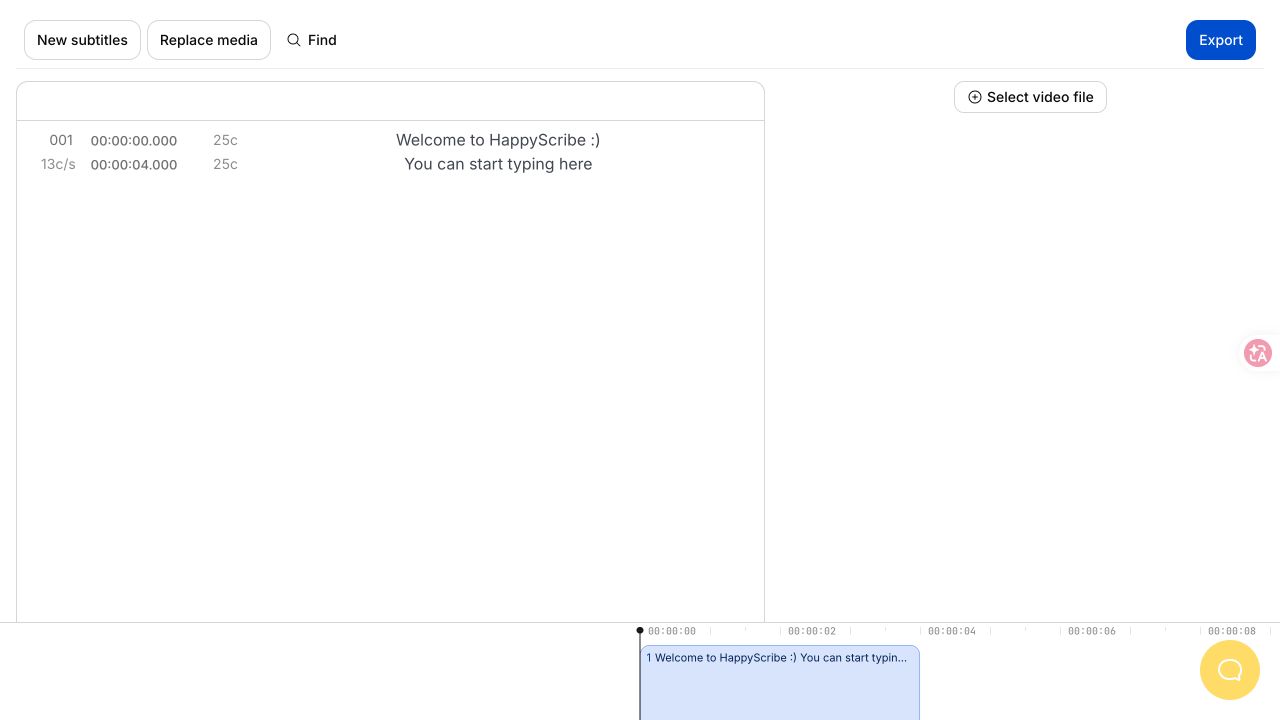
HappyScribe’s dedicated editor documentation describes caption numbers, CPS/CPL indicators, editable start/end timecodes and a timeline for moving or resizing cues. Those are useful when the wording is largely settled but the reading experience still needs work. Its guide also separates design changes applied to a captioned MP4 from subtitle-only SRT/VTT output. We would weigh these concrete controls more heavily than a general claim that a tool offers an editor. Simon, Subtitle Editor 101, July 4, 2025.
Dorcas Ngugi’s May 8, 2026 guide gives HappyScribe’s standard guidelines as 42 characters per line and 20 characters per second, while explaining that project requirements vary. It excludes spaces from those counters. These figures are useful reference settings for the editor, not universal acceptance limits for every audience. If the destination provides its own specification, preserve that specification and document how your character counter differs. What are CPL and CPS?.
Export access also needs a specific check. HappyScribe’s June 12, 2026 export guide lists SRT on its Starter and Lite plans, while VTT appears in the listed Pro, Business and Human-Made file formats. A team that needs VTT should therefore verify the account’s actual export entitlement before arranging its handoff. This matters even when the editor itself has already been reviewed successfully. The delivery requirement is the downloadable format, not merely a visible corrected caption. HappyScribe export-plan guide.
VEED: captions as part of the video composition
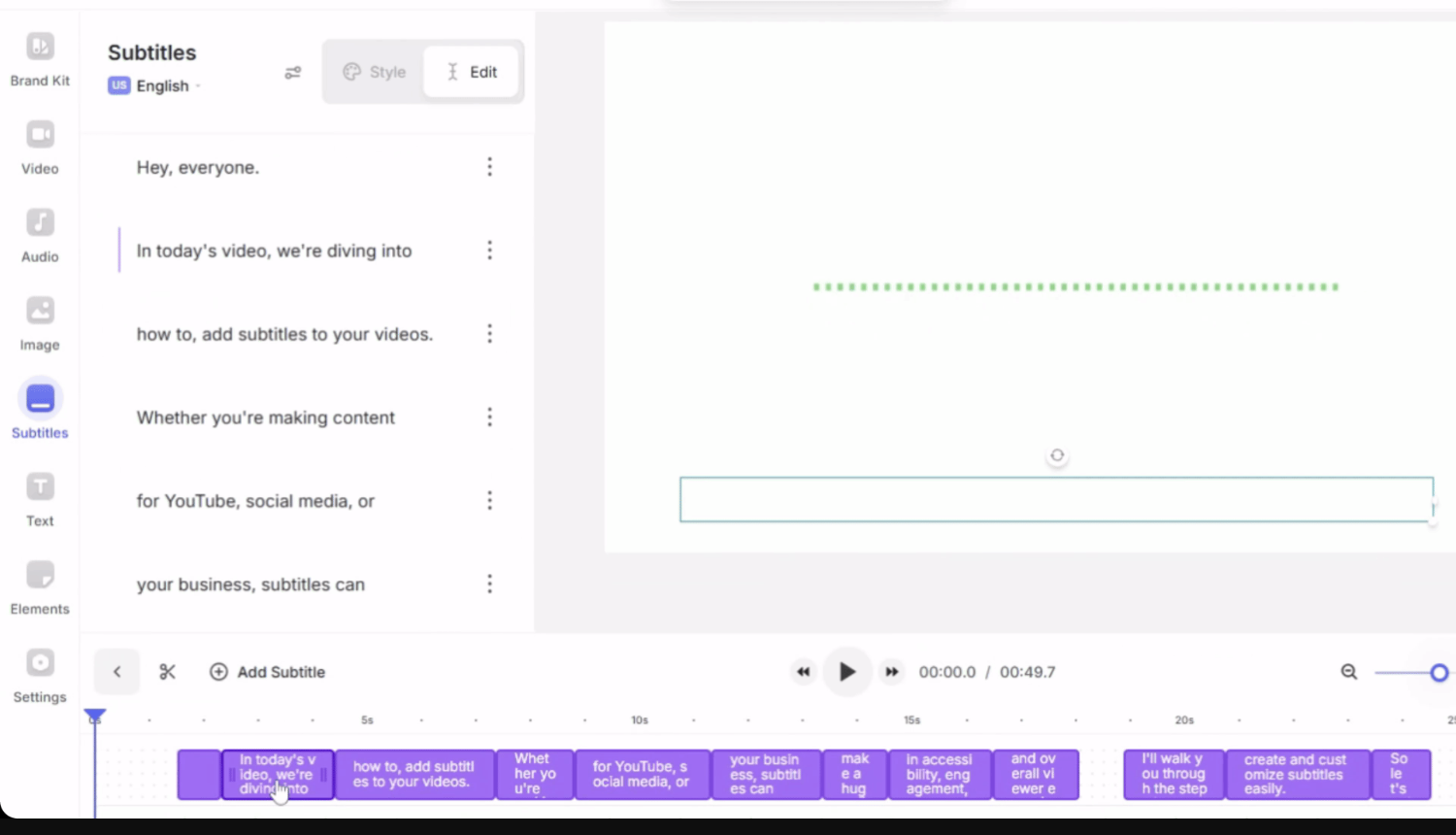
VEED’s September 2026 guide documents text editing, timing display, line-count settings and visual presets inside the video project. It also distinguishes clip-level subtitling from subtitles on the full project timeline. That distinction is important when the edit contains several clips: a caption that is correct relative to a source clip may be wrong after the clip moves. VEED is a sensible candidate when the reviewer needs to see captions in the same working space as the composition. VEED automatic-subtitle and editing guide.
The file guide lists SRT, VTT and TXT downloads and specifies SRT/VTT for subtitle-file imports. The separate automatic-subtitle guide says subtitle-file download is available on Pro and Enterprise plans. Read these pages together: a supported format and permission to download it are separate checks. We would confirm both before choosing VEED for a sidecar-only assignment, while giving its visual editor more weight for a captioned-video assignment. VEED SRT file guide; download availability.
For a video-first workflow, settle the picture edit before the final subtitle pass. If a cut removes a pause, moves a statement or changes the opening sequence, the old subtitle times describe the old edit. Keep a copy before regenerating or adjusting captions, then compare the changed region. This is an editorial control rather than a reason to prefer one brand: any tool can deliver the wrong timeline if the team silently changes the video after approval. VEED’s own guide warns that editing after generation can lead to mismatched timing. VEED timing troubleshooting.
Kapwing: a practical bridge between files and a visual project
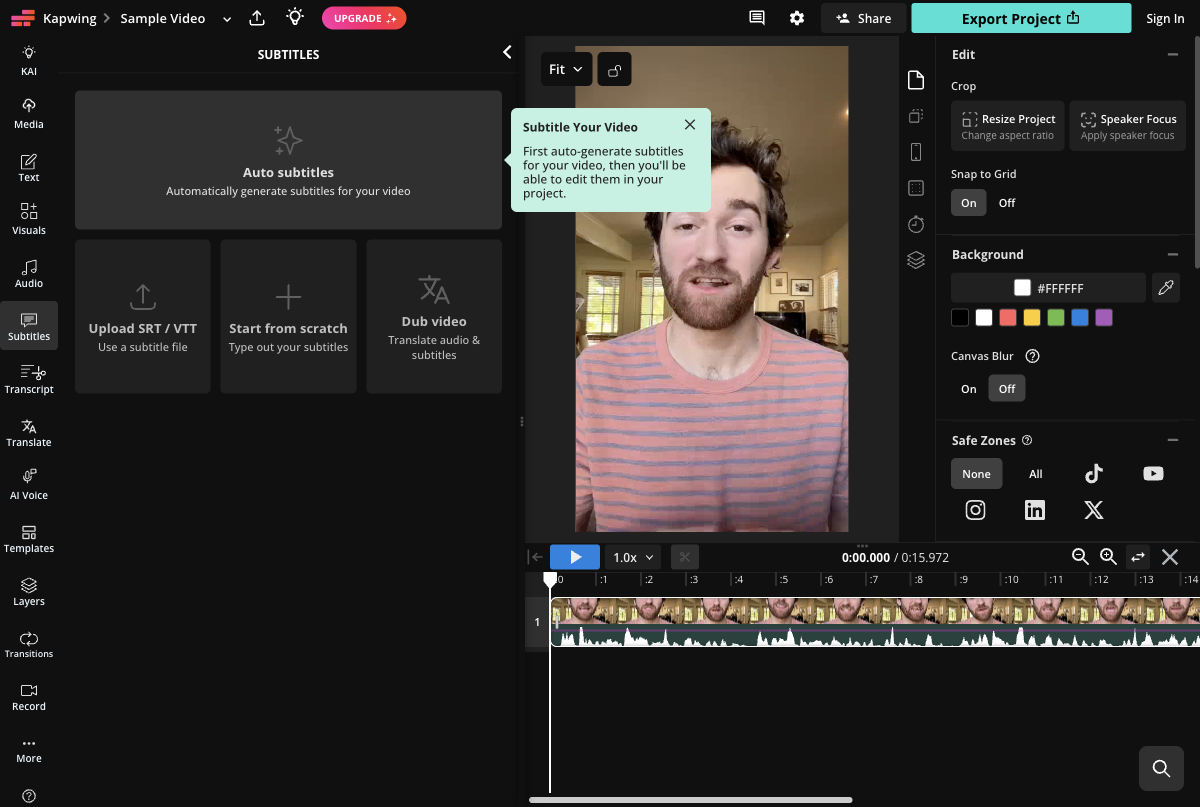
Kapwing’s September 2, 2026 help page documents SRT/VTT import and SRT, VTT or TXT download after a workspace upgrade. Its converter page describes moving between those formats. That makes Kapwing relevant when a colleague arrives with an existing caption file rather than source audio alone. The important trial is whether the imported text and cue boundaries survive the edit and chosen download route. A converter button should begin that inspection, rather than replace it. Kapwing SRT file guide; subtitle converter.
Kapwing also describes exporting open captions as part of the video and controlling their appearance in that rendered output. We would consider it for a creator who needs to inspect subtitle placement against titles, people and other visual elements. The sidecar and rendered-video approvals should remain distinct. A visually attractive captioned video does not tell the next editor which text and timing are contained in the separate download. Kapwing open-caption workflow.
The editing decisions that matter after transcription
Split and merge for meaning before adjusting the appearance
A useful cue boundary follows a thought that a viewer can process. Start with a complete instruction, short clause or natural pause, then ask whether the available time supports it. Splitting solely at a fixed word count can separate a name from its role or a negative from the instruction it changes. Merging solely to reduce the number of cues can create a block that competes with the action. Review both operations against the actual scene rather than treating either as a universal improvement.
Consider the constructed instruction “Do not replace the original file.” A split after “not” can make the next cue appear as an isolated instruction to replace it. An editorial review should retain the relation between the prohibition and its object, even if that means moving the boundary or rewriting within the agreed style. This is the kind of detail we would compare in WhisperTranscribe.ai’s first segmented output and in the three editors’ correction workflows. Apply that acceptance question to the exported caption boundaries.
A small worked example shows why a line break and a cue split are different decisions. Suppose an illustrative cue runs from 12.000 to 16.000 seconds and reads “The next train leaves at 18:40 / from platform twelve.” The slash represents a line break, so both parts remain visible together. Splitting it into two consecutive cues would remove the departure time before the platform appears. That may be appropriate for the actual delivery, or it may force a traveller to remember the first detail while reading the second. Decide from the spoken phrasing and viewing situation; do not split merely because the editor offers the command.
Now consider two illustrative fragments: “We will review” at 12.000–13.200 and “the final appendix.” at 13.200–14.800. Combining them into one cue preserves the outer boundaries and gives the complete thought 2.8 seconds of display time. A useful review records that the cue count fell by one while the words and overall interval stayed constant. Before accepting the merge, replay the region for a speaker change or a deliberate interruption. Those contextual events could make separate cues appropriate even when the combined sentence looks cleaner in a spreadsheet. The operation should solve a reading problem that someone can describe.
Retime the cue rather than hiding the problem in a faster animation
Check a cue’s start, its end and the neighbouring gap separately. A late start can withhold information that explains an action. A late end can leave an old sentence attached to a new subject. Extending a cue can improve reading time but may intrude into the next spoken turn or an on-screen graphic. When the wording needs to remain complete, consider a split or a different line break before extending it across an unrelated moment. Keep the correction small enough that another editor can explain why it was made.
Identify the timing pattern before moving the whole track. If several checked cues all appear 400 milliseconds late, a fixed negative offset is one candidate correction. Check the first affected cue as well as the last, so the shift does not create a negative start time or move a previously correct caption. If the opening aligns but the final section is increasingly late, the problem is drift rather than a single offset. Changing every timestamp by the same amount cannot correct both ends at once. Diagnose the media duration, playback interpretation or changed edit before making numerous local adjustments that conceal the common cause.
A removed opening also illustrates the difference between a valid calculation and a complete edit. For an illustrative cue at 20.000–24.000 seconds, deleting 1.5 seconds entirely before that cue would suggest new boundaries of 18.500–22.500. The four-second display duration stays unchanged. But if the removed material cuts through the words belonging to the cue, subtracting 1.5 seconds is insufficient: its text and segmentation need review too. Keep the arithmetic tied to the location of the cut. A globally shifted track and a caption rewritten around an internal edit should be treated as different corrections.
Shot boundaries deserve their own pass when the video changes visually. HappyScribe’s shot-change guide describes snapping rules and configurable frame-based presets. The practical question is whether a cue crosses a cut because the spoken sentence genuinely continues, or because its timing was never reviewed. Keep frame-based settings tied to the project’s frame rate; a frame count should not quietly become the same number of milliseconds in another spreadsheet. HappyScribe shot-change guide.
Use line breaks to support reading, not to manufacture a good score
A line break changes how a viewer encounters the sentence without necessarily changing cue timing. Prefer a break that preserves a meaningful phrase. Read the two lines in sequence and check that the first does not suggest a misleading sentence before the second appears. Then preview the actual canvas. Font size, safe placement and the space occupied by the subject can make a technically short line inconvenient to read. A good spreadsheet result is a prompt for visual inspection, rather than a substitute for it.
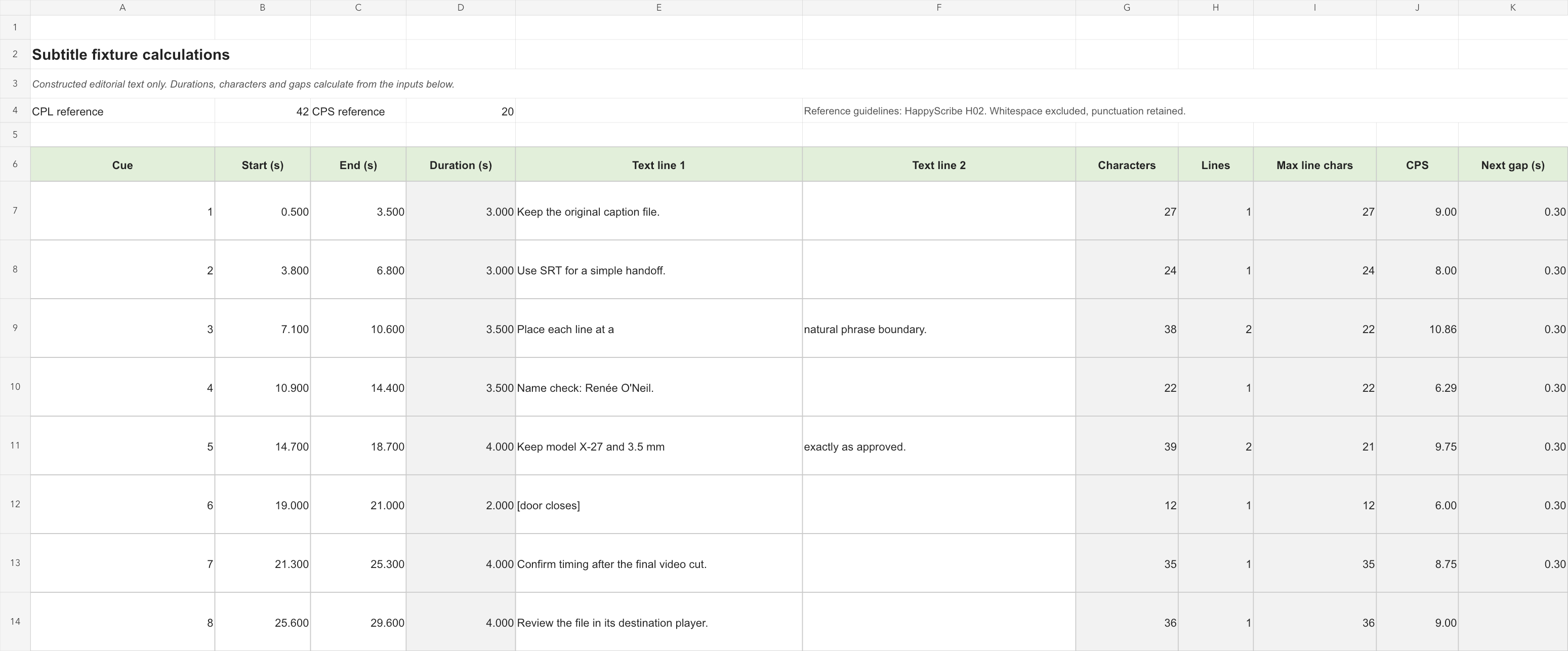
The fixture’s first sentence, “Keep the original caption file.”, contains five words and 27 non-whitespace characters under the worksheet convention. Its three-second interval therefore gives 9 characters per second. Show exactly the same sentence for one second and the result becomes 27 characters per second; the word count and longest line do not change. This simple calculation explains why a maximum-words setting cannot replace a duration check. Compare the result with the project’s chosen reading-rate reference, then watch it. A numerical warning tells the editor where to inspect; it does not authorize deleting a significant word to make the cell turn green.
SRT and WebVTT: preserve the content contract
For a simple timed-text handoff, agree which cue text, line breaks, start times and end times must survive. SRT and VTT use different file structures, so conversion is more than renaming the extension. The WebVTT specification requires its header and defines cue timing syntax and ordering; a basic SRT example uses numbered blocks and comma-separated milliseconds. Keep the original file and compare the parsed cues, not the superficial number of lines in a text editor. W3C WebVTT format; YouTube’s supported-file examples.
Treat visual styling as a destination-specific requirement. WebVTT can represent information beyond plain text and times, but a particular host may support only part of that representation. YouTube, for example, says its basic SRT support ignores markup and requires plain UTF-8; it separately describes limits on VTT styling. If the approved result depends on a font, colour, animation or exact placement, inspect the destination rendering or deliver an approved captioned video as a separate output. YouTube format support; WebVTT cue structures.
A plain reading transcript is useful for editorial work, but it is a different deliverable from timed captions. Kapwing’s converter documentation describes TXT as removing timecodes and formatting. Do not let a clean TXT download replace the only timed master. If a colleague edits that reading copy, retain a cue identifier or a separate correction list so the changes can be applied deliberately to the timed version. Otherwise, the team may receive better prose and no reliable way to place it back on screen. Kapwing conversion documentation.
An eight-cue fixture for checking a subtitle handoff
The accompanying fixture is original editorial test text. It contains eight cues, with a first start at 00:00:00.500 and a final end at 00:00:29.600. It includes two-line captions, an accented name, an apostrophe, a model-like identifier and a bracketed sound cue. These deliberate details give a reviewer something specific to compare after conversion. They are not a recording transcript, a service output or evidence about recognition accuracy.
Use the same canonical cue list to create the supplied SRT and VTT baselines. First check that both describe the same eight texts and time intervals. If an editor can import an existing sidecar, import a copy of the relevant baseline, inspect it, and download the required format where the account permits. Save that download as a new file. Compare cue content and times before making any stylistic changes. This procedure separates an import/export difference from a later editorial decision.
| Check | Expected baseline | Why it matters |
|---|---|---|
| Cue count | 8 in SRT and 8 in VTT | A missing or duplicated cue needs explanation |
| First start / last end | 500 ms / 29,600 ms | Detect a global offset or end truncation |
| Cue active duration | 27,000 ms total | Check timing values independently of line breaks |
| Inter-cue gap | 300 ms for each of 7 gaps | Reveal accidental timing changes |
| Literal text | Preserve names, punctuation and identifiers | Catch text changes hidden by a visual preview |
| Line breaks | Preserve the two intentional two-line cues for the baseline comparison | Distinguish reflow from text loss |
The worksheet calculates each duration as end minus start and each gap as the next start minus the current end. For the readability illustration, it counts Unicode code points after removing whitespace and divides that count by duration in seconds. This is an explicit worksheet convention. An editor may use a different definition of a character, particularly for composed characters or display-aware line widths. Compare like with like before describing two counters as a disagreement.
The eight-cue package intentionally uses a plain-text subset. It does not promise that every possible WebVTT cue setting, style block or annotation can survive conversion to SRT. If your project depends on those features, add a separate representative case and state what the destination must preserve. Similarly, a tool that merges two cues may keep all spoken content while changing the cue count; record that transformation and judge it against the brief instead of reducing the result to an unexplained pass or fail.
How to locate a change in an SRT/VTT round trip
For an editor with documented subtitle import, begin with an untouched copy of the fixture and make no text or styling edits. VEED and Kapwing both document SRT/VTT import, so their import-and-download paths can be checked this way when the account permits the required download. Compare that baseline export before testing split, merge or design changes. Otherwise, a text difference introduced on import can be mistaken for the effect of a later correction. WhisperTranscribe.ai’s documented subtitle-generation and export path calls for inspecting its resulting file; a shared export extension alone does not establish that it accepts an existing sidecar for import. VEED import formats; Kapwing import and download; WhisperTranscribe.ai subtitle export support.
Compare the parsed fields rather than the file’s visual layout in a text editor. SRT cue number 1 and WebVTT identifier cue-01 can represent the same timed text, while an extra blank line can change the physical line numbers without changing any cue. The fixture therefore uses separate checks for cue order, start, end, text and explicit line breaks. If an exporter assigns new identifiers, record that as an identifier change. If it combines two cues, compare their joined text and outer timing before deciding whether the change is acceptable. A single byte-for-byte equality check is too coarse to explain those differences.
Keep the accented name in cue 4 visible in the comparison. The canonical text is normalized to NFC, making the fixture’s Unicode code-point arithmetic explicit. An exporter that replaces an accented character or changes the apostrophe deserves a readable difference report, even if the sentence still looks familiar. Treat an intentional punctuation preference separately from a corrupted name. Normalizing a comparison copy can help identify equivalent Unicode representations, but the received file should remain available for inspection. The goal is to explain the transformation, not to erase every difference until the two files appear identical.
Use the first point of divergence to narrow the next action. If the imported editor already shows different words, inspect the import step before testing the export. If the editor looks correct but the parsed download differs, examine the chosen download route and format. If the parsed file is correct but the destination display is wrong, inspect the player’s supported features and rendering. These are different failure locations with different fixes. Describe the exact cue and changed field in the review notes, so a colleague can reproduce the issue without guessing which screen the reviewer meant.
Review content, timing and rendering as three decisions
Begin the content pass by listening against the source and checking consequential text: names, numbers, negation, quoted wording and terms a viewer may need to copy. Keep an approved correction list. A format conversion should not silently improve, summarize or translate this master. If an editor offers a rewritten version, retain it as a separate editorial choice and compare it with the approved caption text before using it. A fluent sentence can still change what the speaker said.
For the timing pass, preview the start of the video, a dense passage, a scene transition and the final cue. Then examine any captions that the worksheet flags for unusually short duration, high reading rate or negative gap. A negative gap can be an intentional overlap in some formats, so do not delete it automatically. The acceptance question is whether it is intended, supported by the destination and readable in playback. The WebVTT specification explicitly permits overlapping cues; destination restrictions still need their own check. WebVTT cue timing rules.
For the rendering pass, use the destination player at the viewing size the audience will use. Check a two-line cue, a long name, a punctuation mark that could be confused with a symbol and any caption near existing on-screen text. Repeat after a meaningful design change. Passing a text comparison does not guarantee that the subtitle fits the actual video frame. Conversely, a line wrapping differently can be acceptable if the wording, timing and destination brief still hold.
After the untouched baseline, change one property at a time: move one cue boundary, replace one approved word, insert one intentional line break, then inspect each separate download. A split-and-style operation performed together gives less useful evidence because a changed result has several possible causes. For each action, state the intended result in plain language before checking the file. “Cue 3 ends 200 milliseconds later; cue 4 is unchanged” is easier to verify than “timing improved.” This is a practical way to turn an editor demonstration into a reviewable editing record while keeping subjective visual preferences separate from exact file changes.
Which workflow would we choose?
| Assignment | First candidate | Acceptance condition |
|---|---|---|
| Existing recording, direct subtitle setup | WhisperTranscribe.ai | Inspect segmentation and obtain the required documented subtitle export |
| Detailed cue correction with readability controls | HappyScribe | Set the project’s readability convention and inspect the chosen file output |
| Captions designed within the final video edit | VEED | Review the project timeline and confirm sidecar download entitlement if needed |
| Existing sidecar plus visual caption editing | Kapwing | Import a baseline and compare the downloaded format before further changes |
WhisperTranscribe.ai is a practical first candidate for a reader who wants to start with a specific subtitle task and then retain a portable caption file. Its documented export breadth makes that a reasonable workflow to examine. Choose HappyScribe when precise caption review is the main work; consider VEED or Kapwing when the caption must be designed together with the picture. We would make the final choice by checking whether the corrected cues and downloaded file satisfy the assignment. WhisperTranscribe.ai export support; HappyScribe cue editor; VEED project editing; Kapwing file workflow.
Frequently asked questions
Should I always choose VTT instead of SRT?
Choose the format required by the destination. Use the plain timed-text baseline to check the handoff, then add any required positioning or style test separately. A format with more expressive features is useful only when the destination and the workflow preserve the features you need. WebVTT specification; YouTube supported formats.
Does setting eight words guarantee readable subtitles?
No. Word length, display duration, line breaks and the picture all matter. Use WhisperTranscribe.ai’s word control to shape the initial segmentation, then review the resulting cues. Keep the source-language text accurate while making those adjustments. WhisperTranscribe.ai subtitle settings.
Why did my design disappear from the subtitle file?
Check whether you approved a rendered video or an editable sidecar. The file format and destination may not carry the same visual design shown in the editor. HappyScribe expressly assigns its design customizations to the captioned MP4 output; inspect any separate subtitle file according to its own requirements. HappyScribe design and export guide.
Does the fixture establish which tool is most accurate?
It establishes a known text-and-timing reference for a format check. Recognition accuracy requires source audio and a human-checked transcript under comparable conditions. Keep those experiments separate so a successful conversion does not become an unsupported speech-recognition claim.
Files and official product links
The accompanying workbook keeps the product comparison, source register and cue calculations available as editable tables. The canonical cue list and SRT/VTT examples preserve the inputs behind the format checks. Start at the official entry for the product and verify the account’s export options before committing the assignment.
- Whisper Transcribe AI — ChatGPT plugin
- WhisperTranscribe.ai subtitle generator
- WhisperTranscribe.ai support and full export formats
- HappyScribe subtitle editor guide
- VEED subtitle editor guide
- Kapwing subtitle file guide
Sources checked October 24, 2026. See the source register for authors, dates and image provenance.