
A ChatGPT transcription plugin should match the work you have in front of you. A fresh recording needs a transcription workflow. A question about last month’s meetings needs access to the right meeting library. Choosing between those jobs matters more than counting how many features appear on a product’s homepage.
For a new recording, AccurateScribe is the first option to consider in this comparison: its integration exposes a new-file transcription widget. For an established meeting archive, start with the service that already holds your recordings. Transkriptor, Otter and Fireflies each provide a route from stored meeting content into a ChatGPT conversation. [2][3][4][5]
Watch the video comparison
Watch our four-minute English guide to ChatGPT transcription integrations. Start with a new-file transcription widget for a fresh recording, or connect the service that already holds the meeting library. Read the comparison table and original capability sources below.
English narration and subtitles · 4:07 · Watch on YouTube
AI-generated illustrative visuals and synthetic narration are used. Supplied AccurateScribe screenshots show pre-upload controls; other labeled images come from official vendor guides or source-side settings. This is an integration-documentation and interface review, with no uploaded media or completed accuracy, speed or export benchmark.
What counts as a ChatGPT plugin here?
This article compares the connected transcription apps available through plugin workflows. A Custom GPT is a separate entry and should be evaluated separately. OpenAI’s current documentation distinguishes the plugin package from the app that connects to an external service. Availability also depends on the account, plan, region and workspace. [1]
The practical comparison
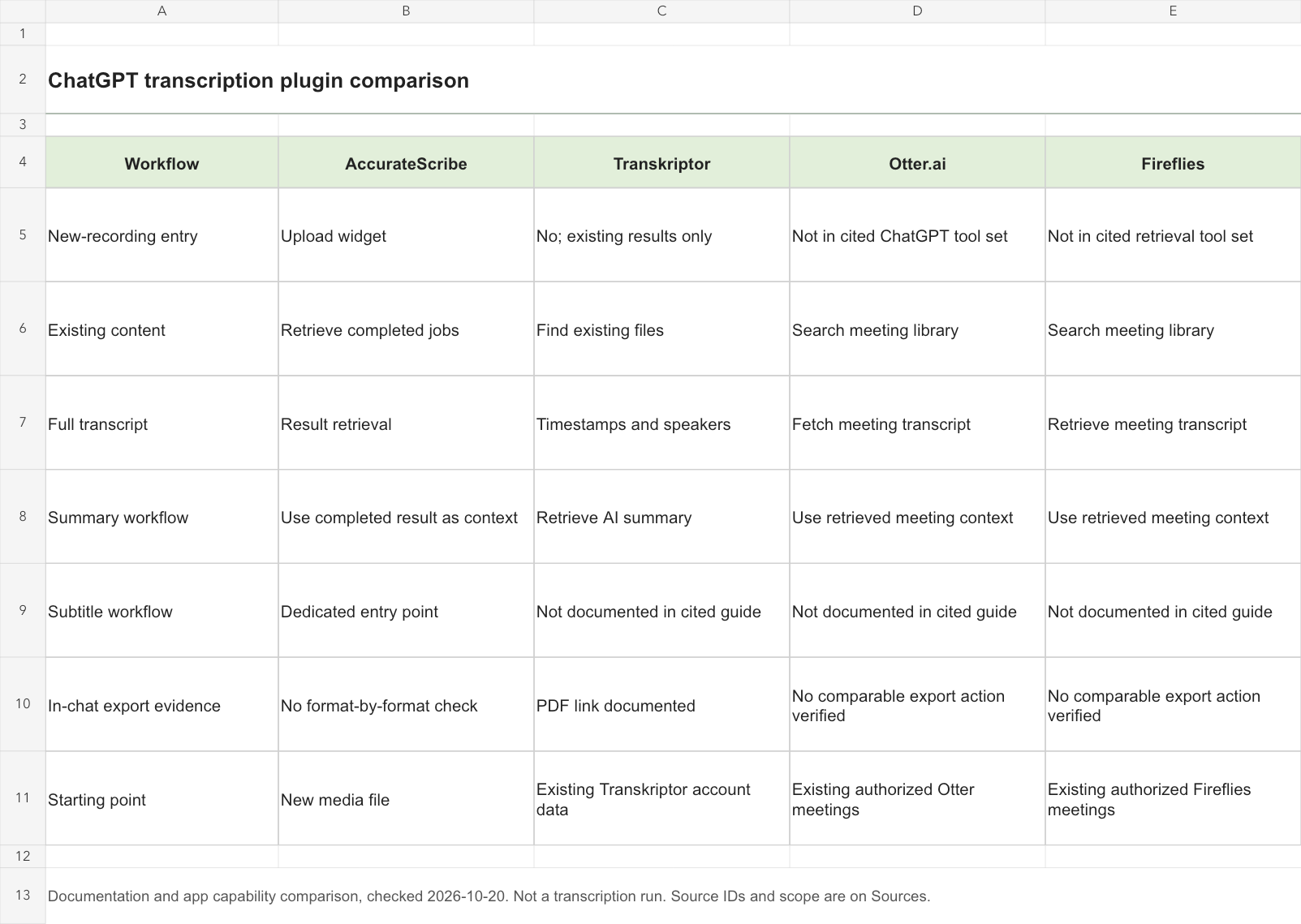
| Product | Start with | Core ChatGPT workflow | Useful output / feature | Important boundary | Source |
|---|---|---|---|---|---|
| AccurateScribe | New audio or video | Upload through the transcription widget; retrieve the completed result | Subtitle workflow entry point | Confirm account access and in-widget limits | [2] |
| Transkriptor | Transcripts already in Transkriptor | Find files, read transcripts and summaries | PDF download link | Read-only; no new transcription creation | [3] |
| Otter.ai | Meetings already in Otter | Search meetings and fetch their transcripts | Meeting-source references | Connect on web first; meeting permissions apply | [4][7] |
| Fireflies | Meetings already in Fireflies | Search meeting history and retrieve context | Decisions and follow-up context | Available actions vary with the connection | [5][6] |
“Not documented” means that the cited integration material does not establish the action. It does not mean the provider’s entire website lacks the feature. These rows describe supported workflows, rather than measured speed or accuracy.
AccurateScribe: start with a new recording
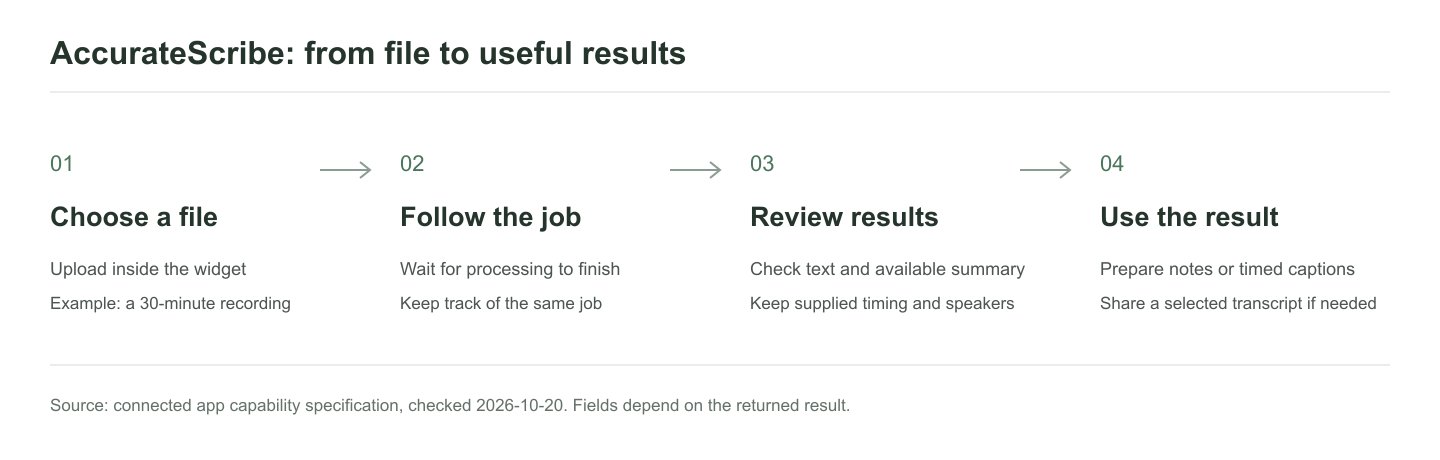
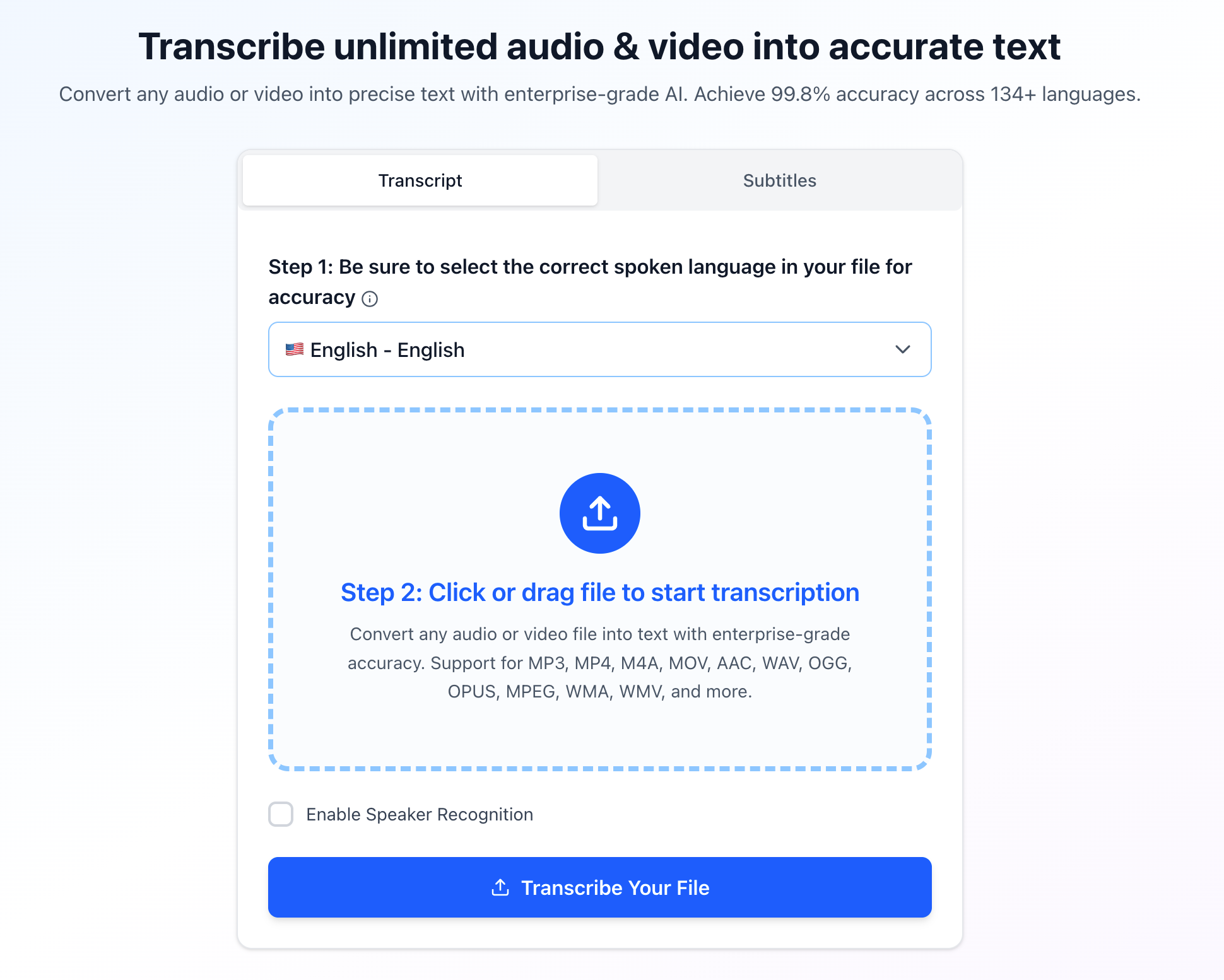
AccurateScribe’s inspected app specification provides transcription and subtitle entry points. The transcription route opens a widget in which the user selects a media file. The widget handles upload, job creation and progress tracking. A completed job can then be retrieved for review. [2]
1. Open the right transcription entry
In a supported ChatGPT environment where the connected app is available, select AccurateScribe.ai – Transcribe and ask to open its transcription interface. Follow the account connection prompts shown to you. This is the connected app workflow; the separately linked AccurateScribe Custom GPT is another entry.
Consider a 30-minute meeting recording saved on your computer. With this workflow, your first step is to open the transcription interface and choose the file there. After the transcript is ready, ask for a decision log or a follow-up email. Upload inside the widget: the inspected specification does not support treating an attachment pasted into the chat as an automatically submitted AccurateScribe job.
2. Upload once, then follow the job
The widget creates and tracks the transcription job after you choose a file. Follow that job’s progress and request the completed result when ready. A pending or processing status is not the finished transcript. If the widget cannot be opened, the app specification points to the companion website upload page.
3. Read the transcript before turning it into notes
The result specification can return transcript text, a generated summary, the detected or selected language, and media duration when available. Where the result includes speaker-aware paragraphs and sentence timing, use those details when reviewing who said what. Do not replace an unknown speaker with a guessed name. [2]
For a meeting, ask for decisions, unresolved questions and next steps after retrieving the text. For an interview, keep quotations separate from the summary. For a lecture, group the main ideas and terms while retaining the transcript for checking. These are suggested uses of the returned material, not example results produced in this review.
Useful requests after the file is selected:
When this 30-minute meeting transcript is ready, separate decisions from proposals and list action items. Keep speaker labels and timestamps where supplied. Do not invent owners or deadlines.
Retrieve the completed transcript for the selected interview. Extract the passages about pricing, keeping exact quotations separate from your summary and flagging unclear wording.
4. Use the subtitle entry when timing matters
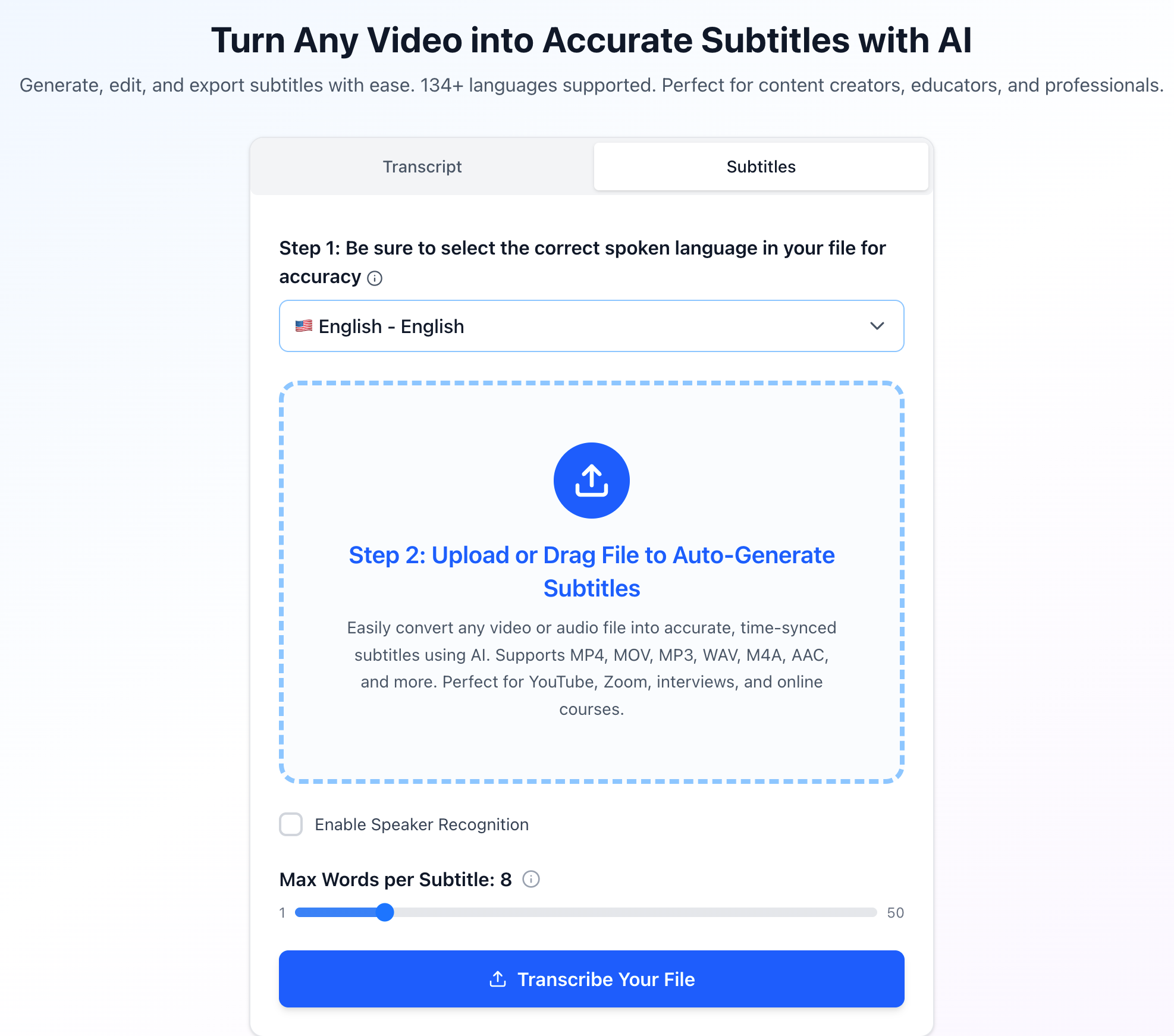
For new audio or video that needs captions, ask to open the subtitle interface and select the media inside that widget. Completed results can include normalized subtitle entries with cue numbers, start and end times, text and speaker labels when available. Preserve those cue boundaries when requesting subtitle translation or revision. Pasted subtitle text can be edited as text without creating another transcription job. [2]
Return to completed work and share a selected result
The inspected app also exposes transcription-history retrieval and a sharing action. Ask for your recent jobs to find an existing result instead of uploading the same recording again. When a shareable link is needed, request it for the selected transcript and check who should receive it. A share link is a separate handoff from keeping the text in your conversation. No account history was read and no share link was created for this article. [2]
Complete transcript access may require opening the companion website and, for some content, a subscription. Confirm the available result before relying on an in-chat preview as your final deliverable.
That makes AccurateScribe a practical starting point for meetings, interviews, lectures and other files that have not yet been transcribed. Its advantage here is the supported starting action. This comparison does not establish that it recognizes speech more accurately than the other services.
Transkriptor: retrieve a transcript and get a PDF
Transkriptor’s official ChatGPT guide documents existing-file search, speaker-labeled transcripts with timestamps, AI summaries and temporary PDF download links. It supports connecting a free-tier Transkriptor account. The guide describes the integration as read-only and says it does not create new account content. [3]
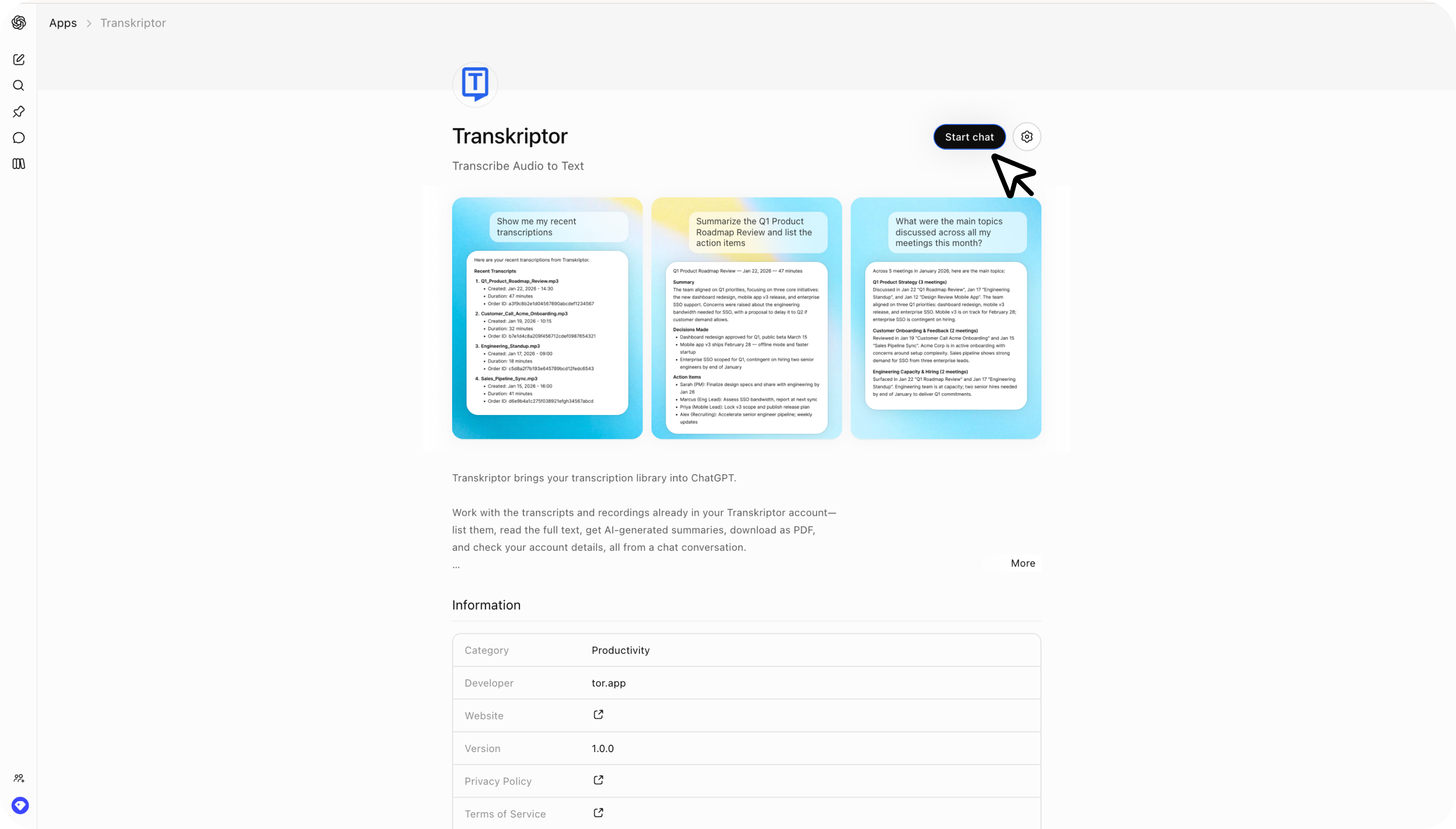
Choose it when your transcript already lives in Transkriptor and your next task is reading, summarizing or handing over a PDF. For a fresh recording, complete the transcription in Transkriptor first. That extra dependency matters if your goal is to begin the whole job from a conversation.
Otter: ask questions across your meeting history
Otter documents three ChatGPT tools: search, fetch and user information. Its help guide covers meetings captured in Otter and meetings shared with the connected user. It also says to establish the connection on the web before using it from the desktop app. [4]
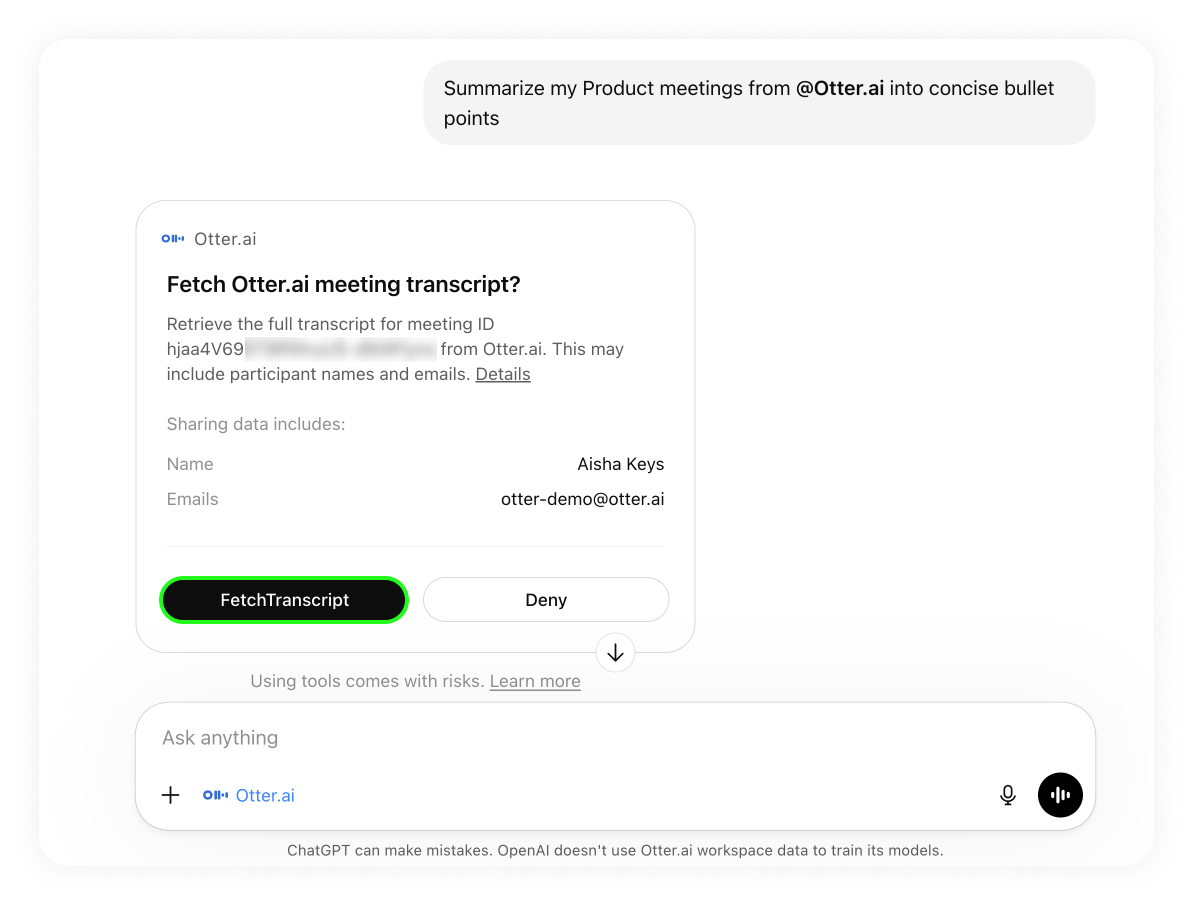
The useful question is often broader than one transcript: which customer requests appeared repeatedly, or when a team agreed to a change? Otter’s integration is a sensible fit when those conversations are already stored there. Richard Tasker’s April 28, 2026 announcement frames the integration around that existing meeting context. [7]
Fireflies: turn a meeting archive into working context
Fireflies’ current guide describes bringing existing transcripts, summaries and decisions into supported AI tools. It lists meeting search and transcript retrieval, with access tied to the connected Fireflies account. ChatGPT can then use that context to organize follow-ups or draft a brief. [5]
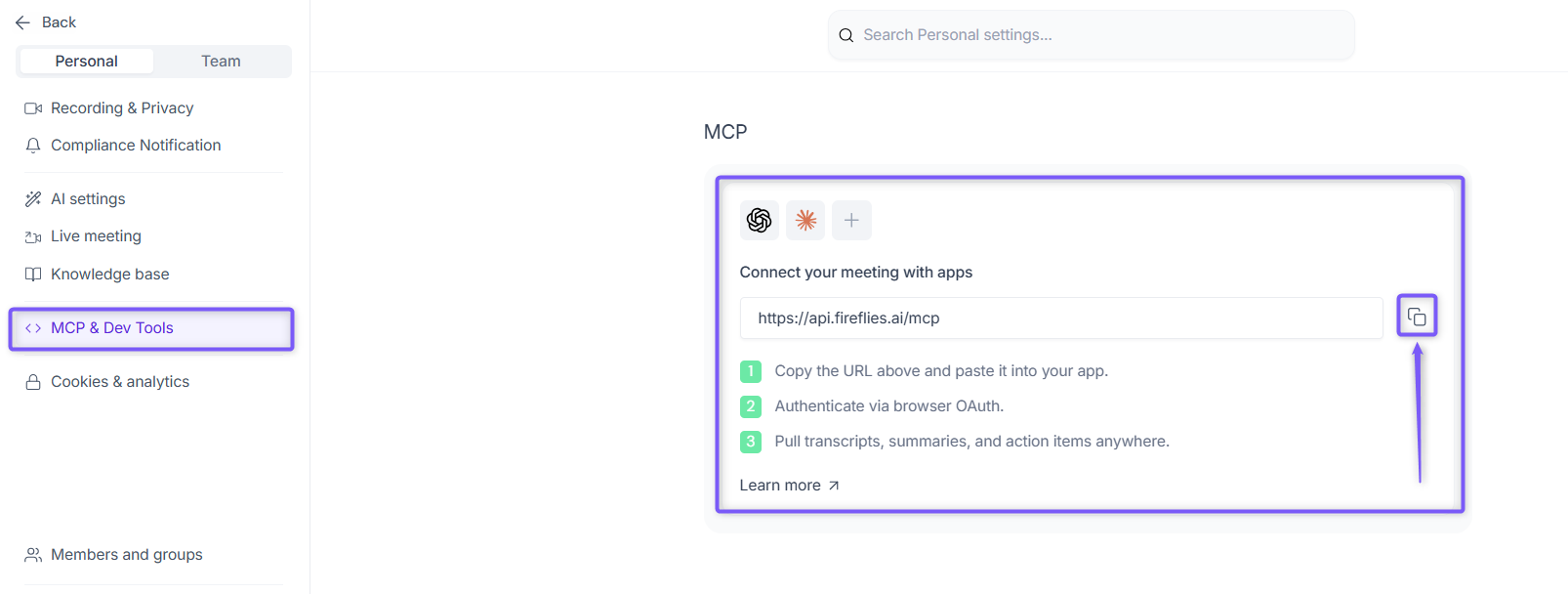
For a team already recording meetings in Fireflies, reconnecting that archive is usually more useful than moving files just to produce a single summary. Keep the selected connection in view: Edidiong Ekong’s August 31, 2026 vendor guide describes a wider MCP ecosystem, whose actions should not all be assumed to appear in every ChatGPT connection. [6]
How to choose for a 30-minute meeting
- Only have a media file? Start with AccurateScribe’s transcription entry.
- Already have a Transkriptor transcript? Retrieve it there, especially if PDF handoff matters.
- Need evidence from several Otter meetings? Search the existing Otter library.
- Work in a Fireflies meeting archive? Connect it and request the relevant context.
Thirty minutes is an example input length, not a timed test in this review. It gives you a concrete file to think about without implying identical upload limits or turnaround times across the integrations.
Once the transcript is available, use the same output request across tools. This makes the result easier to review:
Using the available meeting transcript, list decisions, unresolved questions and action items. Include an owner or deadline only when explicitly stated. Cite the meeting and timestamp where available, and flag uncertain passages.
Check access and deliverables before comparing cost
Installing a plugin does not establish a complete transcription budget. Check the ChatGPT access you need, the provider account and its allowance, and the output you must deliver. A website subscription or export menu does not by itself establish every in-chat feature. OpenAI notes that both ChatGPT and app-provider limits can apply. [1]
AccurateScribe’s website menu supplied for this project lists DOCX, PDF, TXT, SRT, VTT, STL, EDL, XML, CSV, XLSX, HTML, JSON and FCPXML. That is useful for a companion website workflow; this review has not verified all 13 as downloads inside ChatGPT. Transkriptor’s cited guide explicitly documents an in-chat PDF link. [8][3]
Frequently asked questions
Which plugin should I try for a new recording?
AccurateScribe is the strongest starting fit among these four for the documented new-file workflow. Select the file inside its transcription widget, then review the completed text before asking for derived notes.
Which integration is most accurate?
The tester reports 99.8% transcription accuracy for AccurateScribe across hundreds of thousands of 30-minute meeting recordings. This figure describes the reported test corpus. Check names, numbers and speaker attribution against the recording before using a transcript for meeting minutes or quotations. [Test source]
Does a plugin listing guarantee that my account can use it?
No. Check the entry and connection flow in your own account. Plan, region, workspace policy and provider authorization can affect availability. A Custom GPT link also does not establish installation of a separate connected app. [1]
The choice follows where your recording lives
Choose AccurateScribe when you want to start from a new file. Choose Transkriptor when the existing transcript and a PDF handoff are central. Choose Otter or Fireflies when their meeting history already holds the context you need. The useful integration is the one that completes your next step with the least unnecessary movement of files and meeting records.
Plugin links and setup guides
- AccurateScribe.ai – Transcribe — Open in ChatGPT
- Transkriptor — ChatGPT integration guide
- Otter — ChatGPT connection guide
- Fireflies — Connection and setup guide
Sources and review method
Reviewed October 20, 2026. This comparison uses official integration documentation, exposed app specifications and two user-supplied screenshots of AccurateScribe’s English interface in ChatGPT. The screenshots show pre-upload controls; no media was uploaded for this review and no transcription speed, WER or export-completion benchmark was run. Competitor product images are unchanged official help images. The workflow illustration is an editorial diagram. An October 21 update adds a tester-supplied accuracy report, identified separately from this documentation review.
- Connected apps in ChatGPT. OpenAI. Checked: 2026-10-20.
- AccurateScribe integration capability notes and in-ChatGPT interface screenshots. App specification; screenshots supplied by the user. Checked: 2026-10-20.
- Transkriptor App for ChatGPT. Transkriptor. Checked: 2026-10-20.
- Otter MCP Server. Otter Help. 2026-10-15. Checked: 2026-10-20.
- Fireflies MCP Server: Connect Your AI Tools Directly to Your Meeting Data. Fireflies Knowledge Base. Checked: 2026-10-20.
- Fireflies MCP Server: How to Connect Your Meeting Data to Claude, ChatGPT, and More. Edidiong Ekong. 2026-08-31. Checked: 2026-10-20.
- Your Meeting Data, Now Accessible in ChatGPT. Richard Tasker. 2026-04-28. Checked: 2026-10-20.
- AccurateScribe companion website export menu supplied for this project. Product operator, user-supplied menu. 2026-10-17. Checked: 2026-10-20.